How to Shoot HDR Real Estate Photos (Step-by-Step Guide)
Master HDR real estate photography with this complete step-by-step guide. Learn bracketing techniques, camera settings, and post-processing workflows for stunning property photos.

Emily Rodriguez
March 12, 2026
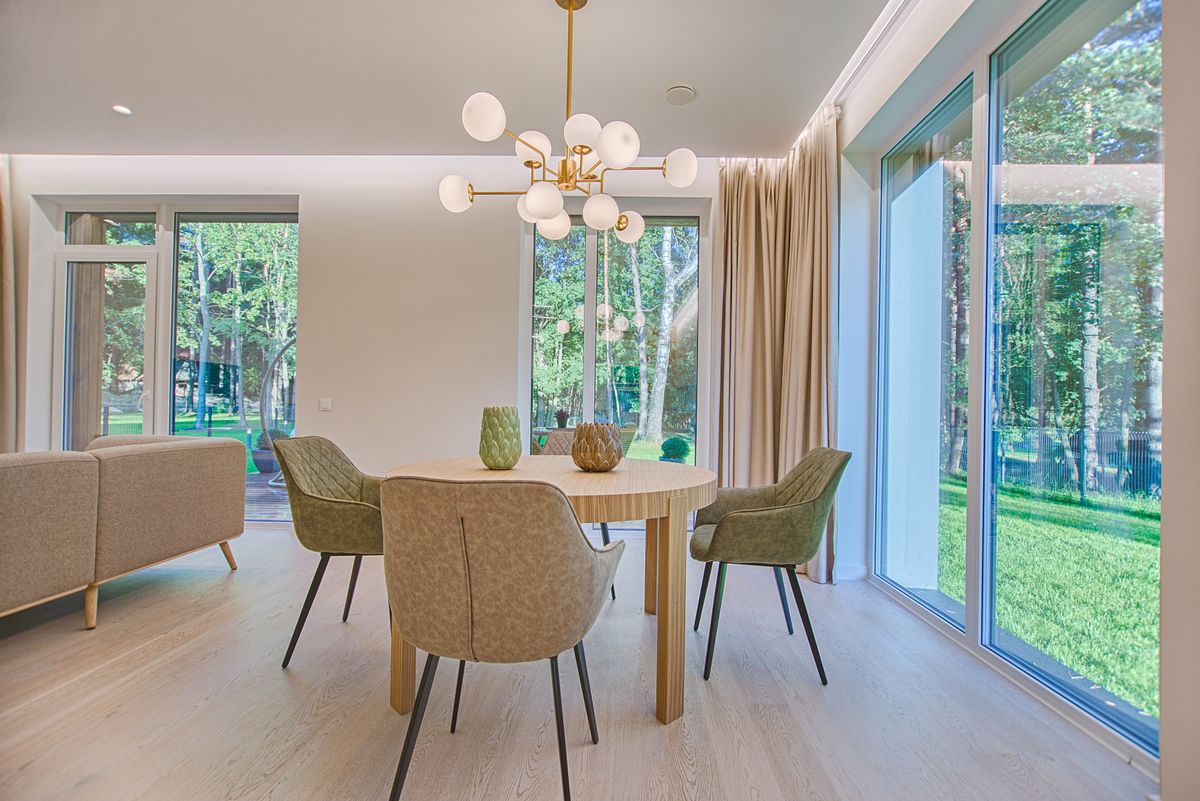
HDR (High Dynamic Range) photography has revolutionized real estate photography. It solves one of the biggest challenges photographers face: capturing both bright windows and dark interiors in a single image. Without HDR, you're forced to choose—either blow out the windows to expose the interior properly, or darken the interior to show the view outside.
In this comprehensive guide, you'll learn exactly how to shoot HDR real estate photos from start to finish, including equipment setup, shooting technique, and post-processing workflow.
What Is HDR Photography?
HDR photography combines multiple exposures of the same scene—typically one properly exposed for highlights, one for midtones, and one for shadows. These exposures are then merged in post-processing to create a single image with detail throughout the entire tonal range.
Why HDR for Real Estate?
- Shows detail in bright windows AND dark corners
- Creates balanced, natural-looking images
- Reveals architectural details that would be lost in shadows
- Produces professional results that clients expect
- Helps properties stand out in online listings
Equipment You'll Need
Essential Gear:
- Camera: Any DSLR or mirrorless with manual mode and bracketing
- Wide-Angle Lens: 16-35mm or 14-24mm
- Sturdy Tripod: Absolutely essential for HDR
- Remote Shutter Release: Eliminates camera shake
- Editing Software: Lightroom, Photoshop, or Aurora HDR
Step 1: Camera Setup and Settings
Proper camera configuration is crucial for successful HDR photography.
Optimal HDR Settings:
- Shooting Mode: Manual (M) or Aperture Priority (Av/A) with AEB
- Aperture: f/8 to f/11 (for maximum sharpness)
- ISO: 100-200 (lowest native ISO)
- White Balance: 5200K or Auto (shooting RAW)
- File Format: RAW (essential for HDR)
- Focus Mode: Single-shot AF
- Image Stabilization: OFF (using tripod)
Step 2: Configure Auto Exposure Bracketing (AEB)
AEB automatically captures multiple exposures at different brightness levels with a single shutter press.
Bracketing Configuration:
3-Bracket Setup (Most Common):
- Exposure 1: -2 EV (underexposed for highlights)
- Exposure 2: 0 EV (normal exposure)
- Exposure 3: +2 EV (overexposed for shadows)
5-Bracket Setup (High Contrast Scenes):
- Exposure 1: -2 EV
- Exposure 2: -1 EV
- Exposure 3: 0 EV
- Exposure 4: +1 EV
- Exposure 5: +2 EV
Pro Tip: Start with 3 brackets. Only use 5 brackets for rooms with extreme contrast (very bright windows with very dark corners).
Step 3: Set Up Your Tripod
Tripod setup is critical because HDR requires perfectly aligned images.
Tripod Setup Checklist:
- Position tripod at chest height (approximately 5 feet)
- Ensure tripod is level using built-in bubble level
- Lock all tripod legs securely
- Attach camera firmly to tripod head
- Enable camera's electronic level or grid display
- Verify camera is perfectly level (critical for vertical lines)
Step 4: Compose Your Shot
With your camera locked on the tripod, compose your shot carefully.
Composition Guidelines:
- Shoot from Corners: Captures two walls and creates depth
- Keep Verticals Straight: Use camera level to avoid tilted lines
- Include Foreground: Adds depth and context
- Frame Doorways: Shows flow to adjacent rooms
- Position Windows: Include windows to showcase HDR benefits
Step 5: Focus Properly
Focus approximately 1/3 into the room from your camera position. At f/8-f/11, this ensures everything from foreground to background stays sharp.
Focusing Steps:
- Switch to single-shot autofocus (One Shot/AF-S)
- Select center focus point
- Focus on a point about 1/3 into the room
- Switch lens to manual focus to lock focus
- Verify focus using Live View at 100% zoom
Step 6: Shoot Your Bracket Sequence
Now you're ready to capture your HDR bracket sequence.
Shooting Process:
- Final Check: Verify composition, focus, and camera level
- Use Remote: Press remote shutter release (or use 2-second timer)
- Stay Still: Don't touch camera or tripod during sequence
- Wait for Completion: Let all brackets capture before moving
- Review: Check histogram to ensure proper exposure range
Important: The darkest exposure should show detail in the brightest windows. The brightest exposure should reveal detail in the darkest shadows. If not, adjust your bracket range.
Step 7: Verify Your Brackets
After each shot, quickly verify your brackets captured the full dynamic range.
What to Check:
- Darkest Exposure: Windows should have detail, not blown out
- Middle Exposure: Should look balanced overall
- Brightest Exposure: Shadows should show detail, not be pure black
- Alignment: All three images should be identical except for brightness
Step 8: Post-Processing Workflow
Once you've captured your brackets, it's time to merge them into a final HDR image.
Method 1: Lightroom Classic
- Import all bracketed images
- Select the 3 or 5 bracketed images
- Right-click → Photo Merge → HDR
- Check "Auto Align" and "Auto Settings"
- Adjust deghost amount if needed (for moving objects)
- Click "Merge"
- Edit the merged DNG file as needed
Method 2: Photoshop
- File → Automate → Merge to HDR Pro
- Select your bracketed images
- Click OK to merge
- Adjust tone mapping settings
- Save as 16-bit TIFF for further editing
Method 3: Aurora HDR
- Import bracketed images
- Choose HDR preset or start from scratch
- Adjust tone mapping, color, and details
- Export final image
Common HDR Mistakes to Avoid
- Over-Processing: The "HDR look" with halos and unnatural colors
- Camera Movement: Not using tripod or touching camera during brackets
- Insufficient Bracket Range: Not capturing full dynamic range
- Wrong Aperture: Shooting too wide (f/4 or wider)
- High ISO: Using ISO 400+ when tripod allows ISO 100
- Ignoring Ghosting: Not addressing moving objects (curtains, trees)
Advanced HDR Techniques
Dealing with Moving Objects:
Curtains, trees, or people moving between brackets create "ghosting." Solutions:
- Use deghosting feature in HDR software
- Manually mask out ghosted areas
- Shoot when movement is minimal
- Use single exposure for shots with significant movement
Flash-Ambient HDR:
Combine HDR with flash for even better results:
- Shoot standard HDR bracket
- Add one flash exposure
- Blend flash exposure with HDR merge in post
HDR vs Single Exposure: When to Use Each
Use HDR When:
- Rooms have windows with views
- High contrast between bright and dark areas
- You want to show both interior and exterior detail
- Professional, polished look is required
Use Single Exposure When:
- Even lighting throughout the room
- No windows or minimal contrast
- Moving objects that can't be avoided
- Time constraints (though HDR is still preferred)
Troubleshooting Common Issues
Problem: Halos Around Objects
Solution: Reduce tone mapping strength, use more subtle HDR settings, or manually blend exposures.
Problem: Unnatural Colors
Solution: Reduce saturation, adjust white balance, use more conservative HDR presets.
Problem: Soft/Blurry Images
Solution: Ensure tripod is stable, use remote shutter, check focus, shoot at f/8-f/11.
Problem: Misaligned Brackets
Solution: Ensure tripod is locked, don't touch camera during sequence, enable auto-align in software.
The Professional HDR Workflow
Here's the complete workflow professional real estate photographers use:
- Prepare Property: Declutter, clean, turn on all lights
- Set Up Equipment: Tripod at chest height, camera level
- Configure Camera: f/8-f/11, ISO 100, AEB enabled
- Compose Shot: From corner, include windows, keep verticals straight
- Focus: 1/3 into room, lock focus
- Shoot Brackets: Use remote, don't touch camera
- Verify: Check histogram and bracket range
- Move to Next Shot: Repeat process for each angle
- Post-Process: Merge brackets, edit for natural look
- Deliver: Export optimized images for client
Practice Makes Perfect
HDR photography seems complex at first, but with practice, it becomes second nature. Start by shooting your own home or practice properties. Experiment with different bracket ranges and post-processing techniques to develop your style.
Remember: the goal is natural-looking images that showcase properties beautifully, not over-processed "HDR art." Keep your edits subtle and realistic.
Let Professionals Handle Your HDR Editing
Shooting HDR brackets is straightforward once you master the technique. But merging and editing those brackets? That's where things get time-consuming. Professional HDR editing can take 15-20 minutes per image—and that adds up quickly when you're shooting 30-40 images per property.
That's where Prixcraft comes in. Our expert editors specialize in HDR real estate photography:
- Professional HDR merging and tone mapping
- Natural-looking results without the "HDR look"
- Perfect exposure balancing and color correction
- Vertical line correction and perspective adjustment
- 24-hour turnaround on standard orders
- Unlimited revisions until perfect
- Affordable pricing starting at $1.50 per image
Focus on capturing great HDR brackets, and let us handle the time-consuming editing work. Upload your images today and see the Prixcraft difference.
About Emily Rodriguez
Award-winning real estate photographer specializing in HDR techniques and architectural photography with 9 years of professional experience.
Ready to Transform Your Property Listings?
Get professional photo editing services that help your properties sell faster.
Start Editing with Prixcraft